How to Optimise Your Google Business Profile (Step-by-Step)
Your Google Business Profile is the first thing customers see. Here's how to set it up properly, get more 5-star reviews, and outrank your competitors in local search.

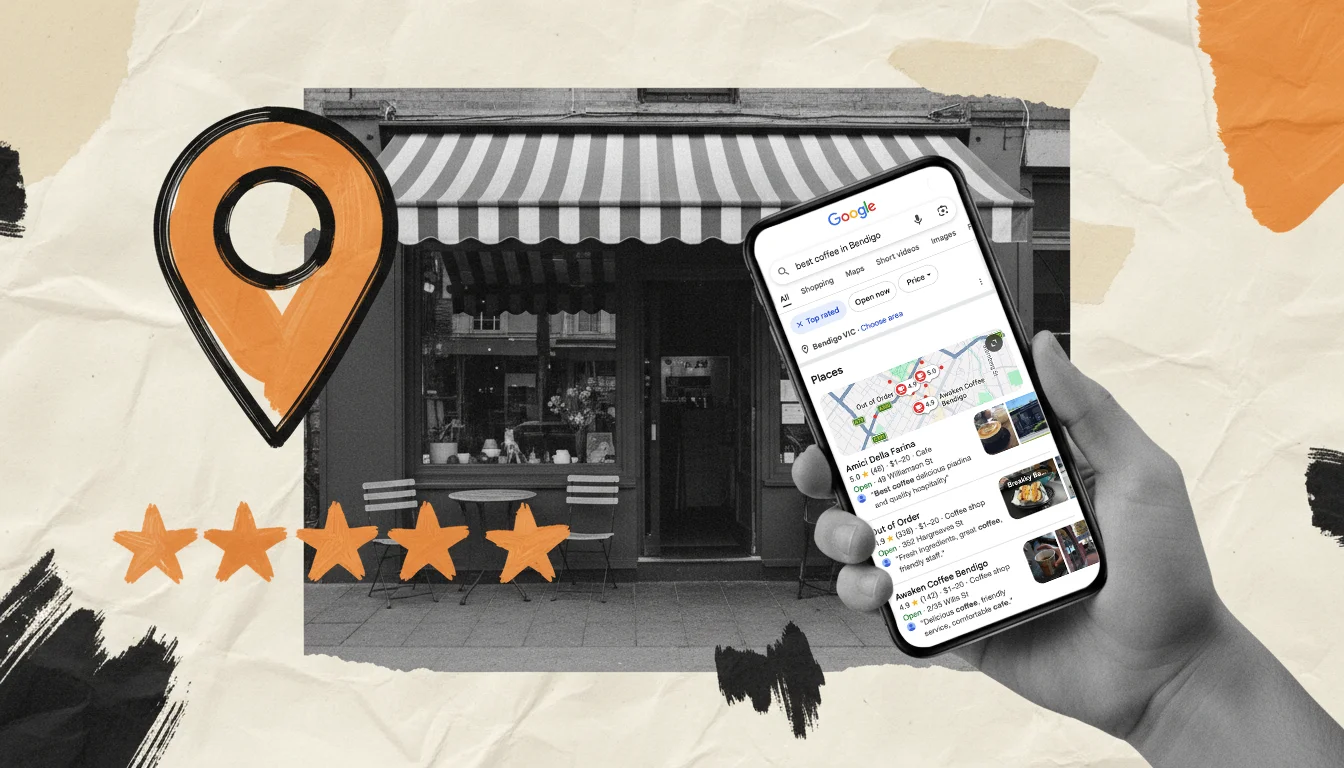
When someone Googles “plumber near me” or “best coffee in Bendigo,” the first thing they see isn’t your website. It’s your Google Business Profile.
That little box with your name, photo, rating, hours, and reviews? That’s your shopfront on Google. And for most local businesses, it’s the single most important piece of digital real estate you have.
Yet most small business owners set theirs up once, never touch it again, and wonder why the phone isn’t ringing.
Here’s how to fix that. Step by step, in plain English.
Step 1: Claim and Verify Your Profile
If you haven’t already, go to business.google.com and claim your listing. If one already exists (Google often auto-generates them from public records), claim ownership of it.
Google will verify you’re the real business owner via mail, phone, email, or video. The video option asks you to film your shopfront signage and surrounding area — it’s quick and usually the fastest method.
If someone else has claimed your listing (a previous owner, an old marketing agency), you can request ownership transfer through the dashboard.
Warning: If you don’t claim your profile, anyone can suggest edits to your listing — wrong hours, wrong phone number, wrong photos. Google often accepts these suggestions automatically. Claim it and control it.
Step 2: Get Your Business Name Right
Your business name on Google must match your real-world signage and legal registration. Exactly.
Do not add keywords like “Smith Plumbing — Best Emergency Plumber Sydney.” Google is actively suspending profiles that do this, and they’ve ramped up enforcement in 2025-2026. If your ABN says “Smith Plumbing Pty Ltd,” your Google Business name should be “Smith Plumbing” or “Smith Plumbing Pty Ltd” — pick one and use it everywhere.
Step 3: Choose the Right Categories
Your primary category is the single most important field on your entire profile. It tells Google what searches to show you in.
Pick the most specific category that describes your core service. “Emergency Plumber” is better than “Plumber.” “Japanese Restaurant” is better than “Restaurant.”
Then add 3-5 secondary categories for your other services. A tip: search your main keyword on Google Maps and look at what categories your top-ranking competitors are using. That’ll tell you what’s working.
Step 4: Write a Business Description That Actually Sells
You get 750 characters. Front-load the first sentence with your primary service and location.
Bad: “We are a family-owned business that has been proudly serving our community since 2008.”
Good: “Sydney’s trusted emergency plumber serving the Inner West since 2008. Same-day callouts, upfront pricing, no hidden fees. Licensed and insured.”
Include your service area, your key services, and a reason to pick you over the competition. Nobody cares how long you’ve been in business unless you also tell them what you’re good at.
Step 5: Fill Out Every Single Field
This is where most businesses drop the ball. They fill in the basics and skip the rest. Every empty field is a missed opportunity.
Services and products: List every service you offer with a brief description and price where possible. Google’s AI now uses this information to answer customer questions directly in Maps — if your services section is empty, you’re invisible to those queries.
Attributes: Tick every relevant attribute. “Wheelchair accessible,” “Accepts card payments,” “Women-owned,” “Free quotes.” These show up as badges on your profile and as filter options in search.
Hours: Get these right, including public holidays. Incorrect hours are one of the top reasons customers leave angry reviews. Set your regular hours, then update special hours for ANZAC Day, Boxing Day, and any days you close early.
Website link: Add your website URL with tracking parameters so you can measure what Google Business is actually sending you: yoursite.com.au?utm_source=google&utm_medium=organic&utm_campaign=gbp
Appointment link: If you have online booking, add the URL here.
Step 6: Fix Your NAP Consistency
NAP stands for Name, Address, Phone number. It sounds simple, but it’s one of the biggest local SEO factors — and most businesses get it wrong without realising.
Google cross-references your business details across every directory, website, and social profile it can find. If your Google Business Profile says “42 Smith St” but Yellow Pages says “42 Smith Street” and your Facebook says “Unit 3, 42 Smith St” — that inconsistency reduces Google’s confidence in your listing and hurts your ranking.
How to Audit Your NAP
- Google your business name + suburb. Check the first 3 pages of results for any listing with old or inconsistent details.
- Check these Australian directories specifically — they’re the ones Google pays attention to:
| Directory | URL |
|---|---|
| Yellow Pages | yellowpages.com.au |
| True Local | truelocal.com.au |
| Localsearch | localsearch.com.au |
| Hotfrog | hotfrog.com.au |
| White Pages | whitepages.com.au |
| HiPages (trades) | hipages.com.au |
| Oneflare (services) | oneflare.com.au |
| Apple Maps | Apple Business Connect |
| Bing Places | bingplaces.com |
| Your business page |
How to Fix It
Create a master document with your exact, canonical business details:
- Full business name (decide once whether to include “Pty Ltd”)
- Full address with consistent formatting (“Street” or “St” — pick one)
- One phone number format (either
0412 345 678or(02) 9876 5432) - Website URL
Then go through every directory and update them all to match. Most Australian directories let you claim and edit your listing for free. Update your website footer to match too.
Pro tip: Pick a format and write it down. “Street” or “St”? “Unit 3/” or “U3/”? These tiny differences matter to Google’s matching algorithm. Consistency beats correctness — just make sure everything says the same thing.
Step 7: Get More (Genuine) 5-Star Reviews
Reviews are one of the top three local ranking factors. More reviews, higher rating, better ranking. But beyond SEO, reviews are how customers decide whether to call you or your competitor.
How to Ask for Reviews
Google now provides a direct review link and QR code in your dashboard (go to “Ask for reviews”). Use them.
The simple system that works:
- Finish a job or serve a customer.
- Within 24 hours, send a quick SMS or email: “Thanks for choosing us! If you’ve got 30 seconds, we’d love a quick Google review: [link]”
- Print your QR code on receipts, invoices, business cards, and at the counter.
The key is timing. Ask when the customer is happiest — right after a successful job, right after they say “looks great,” right after they compliment you. Don’t wait a week.
How to Get Mostly 5-Star Reviews (Without Gaming the System)
Google prohibits “review gating” — the practice of screening customers and only sending happy ones to Google. The ACCC has similar rules about misleading conduct. Don’t do it.
What you can do instead is smarter and completely above board:
Run a separate customer feedback loop. Send a quick “How did we go?” check-in within an hour or two of completing a job — via text, email, or a simple form. This isn’t a review request. It’s a service recovery tool.
If a customer flags an issue, you now have a chance to fix it before they feel the need to vent on Google. Call them, sort it out, make it right.
Then send your Google review request 24 hours later — after the problem has been resolved and the customer is satisfied.
The result? You’re asking everyone for a review (which is fine), but you’ve proactively resolved problems first (which is smart). Happy customers leave happy reviews. Unhappy customers who’ve had their issues resolved often leave even better reviews, because you showed you care.
How to Respond to Reviews
Positive reviews (respond within 24-48 hours):
- Thank them by name
- Reference something specific about their job or experience
- Keep it natural — not a copy-paste template
“Thanks Sarah! Glad we could get that hot water sorted before the weekend. Appreciate you trusting us with it.”
Negative reviews (respond within 24 hours):
- Thank them for the feedback
- Acknowledge the issue without getting defensive
- Apologise for their experience
- Offer to resolve it offline with your direct phone number
- Never argue publicly
“Hi Mark, sorry to hear the job didn’t meet your expectations. That’s not our standard. I’d like to make this right — could you call me on [number] so we can sort it out?”
Never copy-paste the same response to every review. Customers (and Google) can tell.
Step 8: Post Regularly
Google Posts are short updates that appear on your profile. Think of them like social media posts, but on Google.
Businesses that post weekly show Google (and customers) that they’re active and engaged. Posts expire from prominent display after 7 days, so consistency matters more than volume.
What to post:
- Before and after photos of completed work
- Seasonal tips relevant to your industry (“3 signs your gutters need replacing before winter”)
- Special offers or limited-time promotions
- New services or products
- Team photos, new hires, milestones
- Community involvement (local sponsorships, events)
Every post should include:
- A photo (1200x900px works best)
- A CTA button (Book, Call, Learn More)
- Punchy text — keep it under 300 words
Aim for at least one post per week. Set a recurring reminder on Monday morning if you have to.
Step 9: Add Photos (Real Ones, Regularly)
Businesses with quality photos get 42% more direction requests and 35% more website clicks. Photo quality and frequency is now a direct ranking signal.
Upload at least 2 new photos per week. They don’t need to be professional — phone photos are fine as long as they’re well-lit and show real work.
What to photograph:
- Completed jobs and finished work
- Your team on the job (candid beats posed)
- Your shopfront and workspace
- Products on display
- Before and after shots
What not to do:
- Don’t use stock photos. Google and customers can both tell.
- Don’t upload blurry, dark, or low-quality images.
- Monitor customer-uploaded photos — if someone uploads something irrelevant or unflattering, you can flag it for removal.
Short videos work too. Keep them under 30 seconds, 720p minimum. A quick walkthrough of your workspace or a 15-second timelapse of a job is gold.
Step 10: Track What’s Working
Your Google Business Profile has a Performance section with useful metrics. Check it monthly.
The numbers that matter:
- Calls — how many people tapped “Call” from your profile
- Direction requests — how many tapped “Directions”
- Website clicks — how many clicked through to your site
- Search queries — what terms people are finding you with
How to read them:
- High impressions but low calls = your profile isn’t compelling enough. Improve photos, description, and get more reviews.
- High direction requests but low website clicks = people are finding you on Maps but not engaging. Check your website link is working and your site is mobile-friendly.
- Track month over month. A sudden dip in impressions could mean a competitor has optimised their profile or you’ve gone quiet on posting.
The Mistakes That Kill Your Ranking
Here’s the quick list of what not to do:
- Keyword-stuffing your business name. Google will suspend your profile.
- Choosing the wrong primary category. Too broad = invisible for specific searches.
- Inconsistent NAP. Even “St” vs “Street” matters.
- Ignoring reviews. Not responding signals you don’t care.
- No photos, or stock photos. Kills trust immediately.
- Never posting. An inactive profile looks like a closed business.
- Wrong hours on public holidays. Customers who show up to a closed business leave 1-star reviews.
- Empty services section. Google’s AI can’t recommend you if it doesn’t know what you offer.
- Duplicate listings. Multiple profiles split your reviews and confuse Google. Find and merge duplicates.
One Thing That Changed in 2025-2026
Google replaced the old Q&A section on Business Profiles with an AI-powered feature called “Ask Maps.” Instead of customers posting questions and you answering them, Google’s AI (Gemini) now generates answers automatically by pulling from your profile, your website, and your reviews.
This means the accuracy and completeness of your profile matters more than ever. If your services section is empty, your website is thin, and your reviews don’t mention specific services — the AI has nothing to work with, and you become invisible in conversational search.
Fill out every field. Encourage customers to mention specific services in their reviews. Make sure your website and your Google profile tell the same story.
Action Items
This week: the basics.
- Claim and verify your profile at business.google.com if you haven’t already.
- Check your business name matches your signage exactly. No added keywords.
- Review your primary category. Is it the most specific option available?
- Fill in your services section completely. Every service, with a description.
- Set your hours, including upcoming public holidays.
This month: NAP and reviews.
- Create a master NAP document with your exact business details.
- Audit your listings across the 10 Australian directories listed above. Fix any inconsistencies.
- Set up a review request system. Get the direct link and QR code from your dashboard. Start asking every customer.
- Respond to every existing review you haven’t replied to yet.
Ongoing: stay active.
- Post at least once per week. Set a Monday reminder.
- Upload 2+ new photos per week. Phone photos of completed work are perfect.
- Check your Performance metrics monthly. Track calls, clicks, and direction requests.
- Update your hours before every public holiday.
Need Help Getting This Right?
Setting up your Google Business Profile properly is one of the highest-ROI things you can do for your local business. But keeping it optimised month after month takes consistent effort.
Our Growth plan ($345/mo) includes full Google Business Profile setup and ongoing management — posts, photos, review management, and monthly reporting. Everything in this guide, done for you.